Managing your cloud connection
Check your balance, reconnect, and handle an expired session.
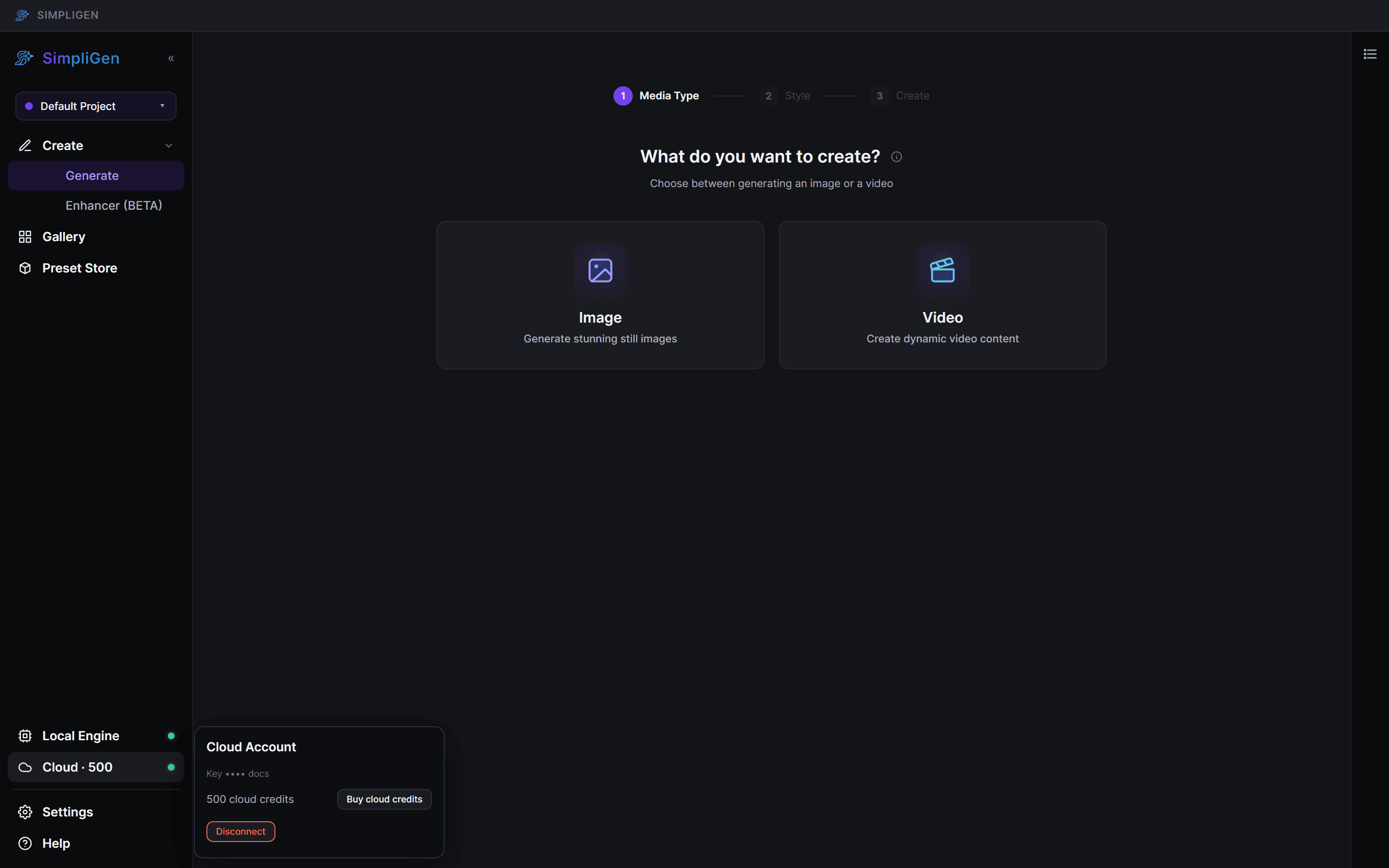
Once you are connected, the Cloud item on the rail's bottom system strip shows your cloud status and credit balance.
Your balance
Your current credit balance is shown on the Cloud rail item. Click it to open the Cloud Account popover, where you can buy credits, manage your account, or disconnect. Your balance refreshes after you generate and after a successful top-up.
If your connection drops
Cloud connections can expire or be reset. When that happens, SimpliGen tells you clearly rather than silently failing:
- The Cloud rail item reverts to Connect to Cloud, and the connect banner reappears in the content area.
- A queued cloud job shows a reconnect option.
- You will see a single notification, not a wall of errors.
To get going again, click Connect to Cloud and enter a fresh emailed code.
Switching machines
Your cloud connection is tied to your account, so you can connect SimpliGen on another computer the same way: install, activate, then connect with an emailed code.
Generations in progress
If your session drops while a cloud generation is running, you do not lose it. SimpliGen reattaches to the in-flight job when you reconnect or restart, so a paid result is never lost.